Restore image
NOTICE

A new image will delete all data, including user data and licences.
- Make a backup of all the data and programmes you need.
- Please return any existing software licences before installing the new device image. This ensures that the licence is properly released and can be reactivated once the system has been restored. This prevents the loss of licences and ensures that the licensed software can continue to be used.
Preparations:
- Connect the keyboard to the USB port.
- Connect the monitor.
- Plug the USB stick into a free USB port on the device.
- Switch on the device and hold down the ESC key to enter the BIOS.
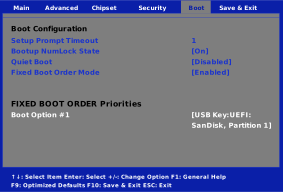
- Select the tab
'Boot’and set the USB stick as the first boot device.
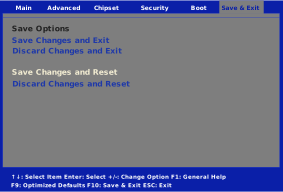
Select the tab ‘Save & Exit’. Select ‘Save Changes and Reset’, then confirm by pressing ENTER after entering to save the changes and restart the device.
If a black screen appears, carry out a power-on reset.
Select the drive containing the image and confirm by pressing ‘ OK.
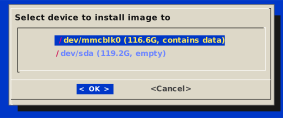
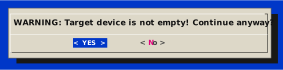
Please confirm that the correct image is being installed.
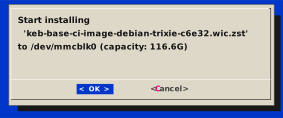
Please only proceed once you are certain that all data has been backed up and licences have been returned.
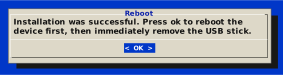
Once the installation is complete, click OK and then remove the USB stick straight away.
Press ESC to return to the BIOS.
Set the hard disk as the first boot device.
Save the settings and restart by selecting ‘ Save Changes and Reset.
You have now completed the installation of the base image.
The next steps:
Use the NOAInstaller or the commissioning tools to install the required services and licences.